Electronic Scribe User Manual
Installation
Installation Overview
The Electronic Scribe consists of two components. Both are included in the single installer for the scribe.
- Scribe Adapter
- A program that runs on the scoring computer with MasterScoring.
- JudgeApp
- The Android application judges use that runs on the phones.
Installation Steps
The installation process includes the following steps, described in further detail below.
- Install the Scribe Adapter via the provided Windows installer.
- Start the Scribe Adapter.
- Install the JudgeApp on the phones.
- Configure the JudgeApp to communicate with the scoring computer.
Prerequisites
- The phones and scoring computer are on the same network.
- The scoring computer should have its firewall off, or open the
following ports to inbound connections:
- TCP:8811
- The phone has no previous version of JudgeApp on it
- (If it has a previous version, uninstall it first by long-pressing the app icon, then selecting App info -> Uninstall)
Install Scribe Adapter
The Scribe Adapter is installed via the provided installer. No additional steps beyond running the installer are necessary.
Start the Scribe Adapter
Look for a shortcut on the Desktop named ‘Start Scribe Adapter’ and double click it.
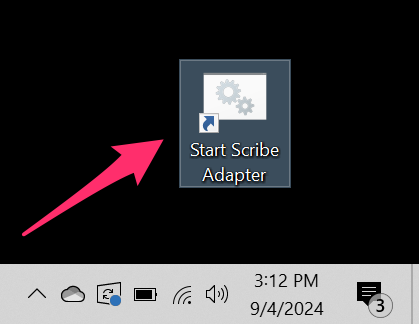
This will open a browser window automatically showing the Scribe Adapter’s dashboard. It may take a few seconds to load the first time.
There is a second window that is the adapter itself. You do not need to use this window, other than to shut down the adapter by closing the window.
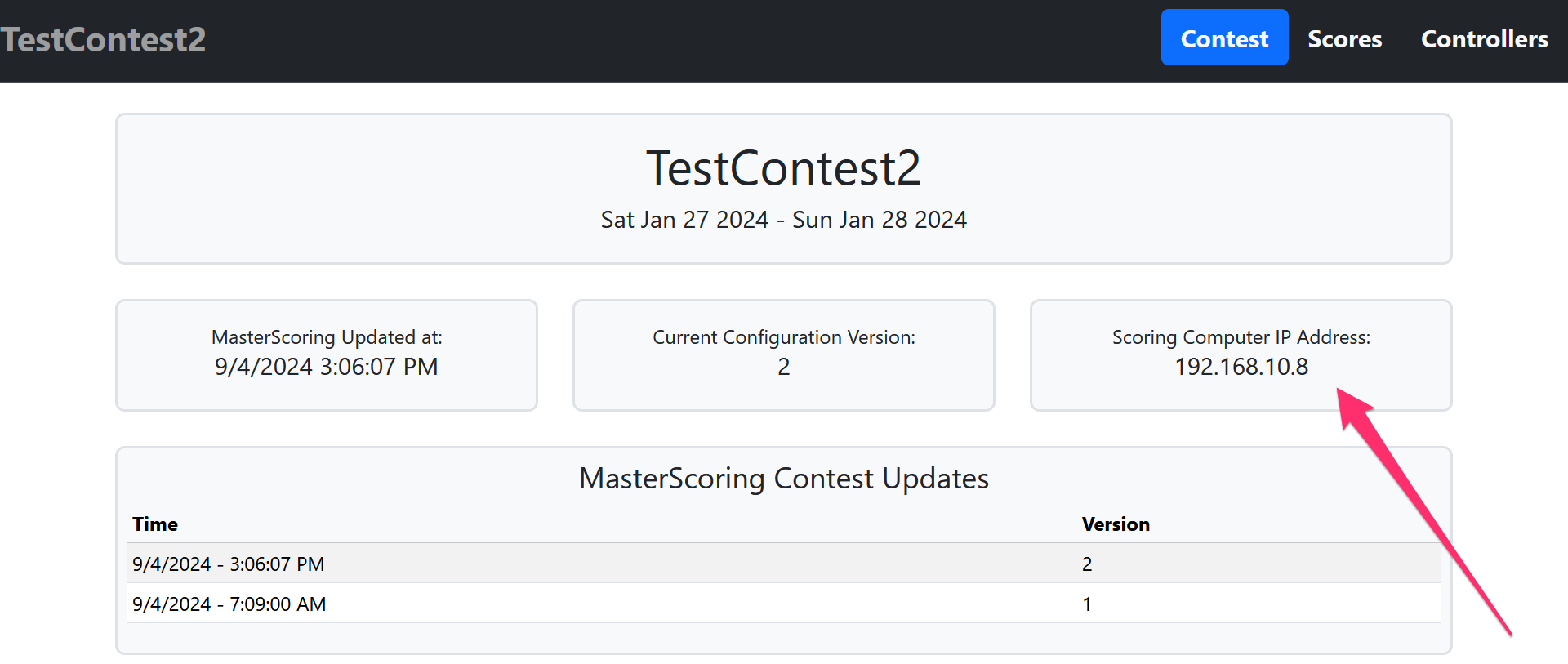
On the dashboard you will see the Scribe Adapter automatically finds and opens the contest that MasterScoring has open. If you select a new contest in MasterScoring, you must stop and restart the Scribe Adapter.
Note the “Scoring Computer IP Address” for later.
Install the JudgeApp
Important Note
On the phone, make sure any previous version of JudgeApp is uninstalled before proceeding. Swipe up on the desktop to see all applications. If you see JudgeApp, uninstall it by long-pressing the icon, and selecting App info -> Uninstall.
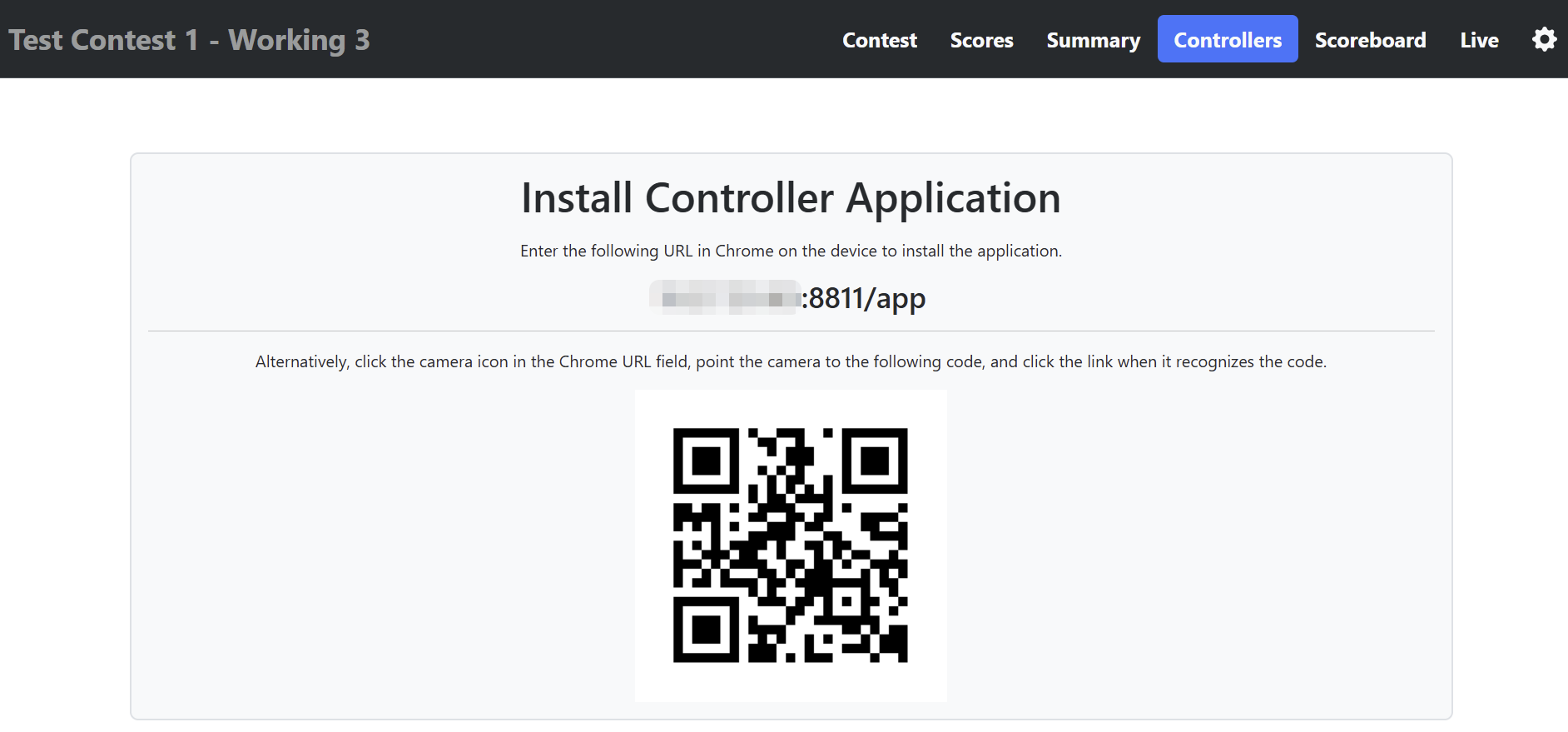
The JudgeApp is installed on the phones by pointing Chrome on the phone to the Scribe Adapter. Do this by pointing the phone at the QR Code on the dashboard’s Controllers page.
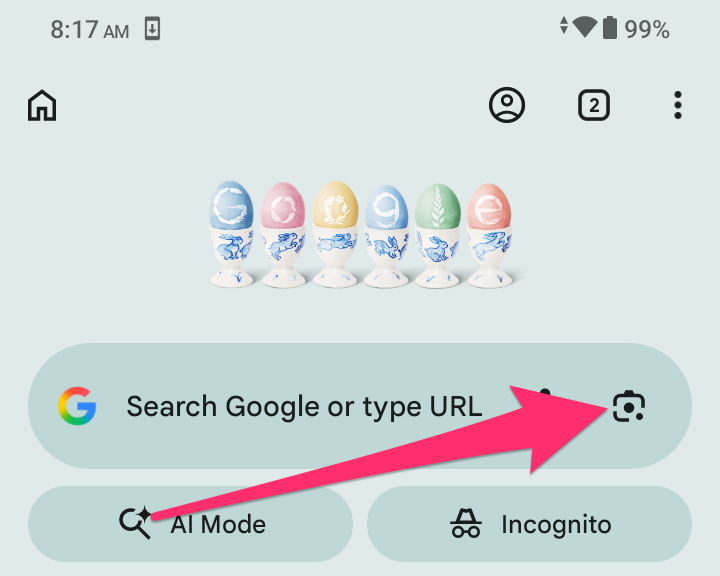
On the phone, open the Google Chrome browser. Then select the small camera icon in the Chrome address bar.
Point the camera at the QR Code, and tap the button or link on the camera when it recognizes the QR Code. You should see it start to download the application, possibly with a confirmation dialog if you’ve installed a previous version off the judge app.
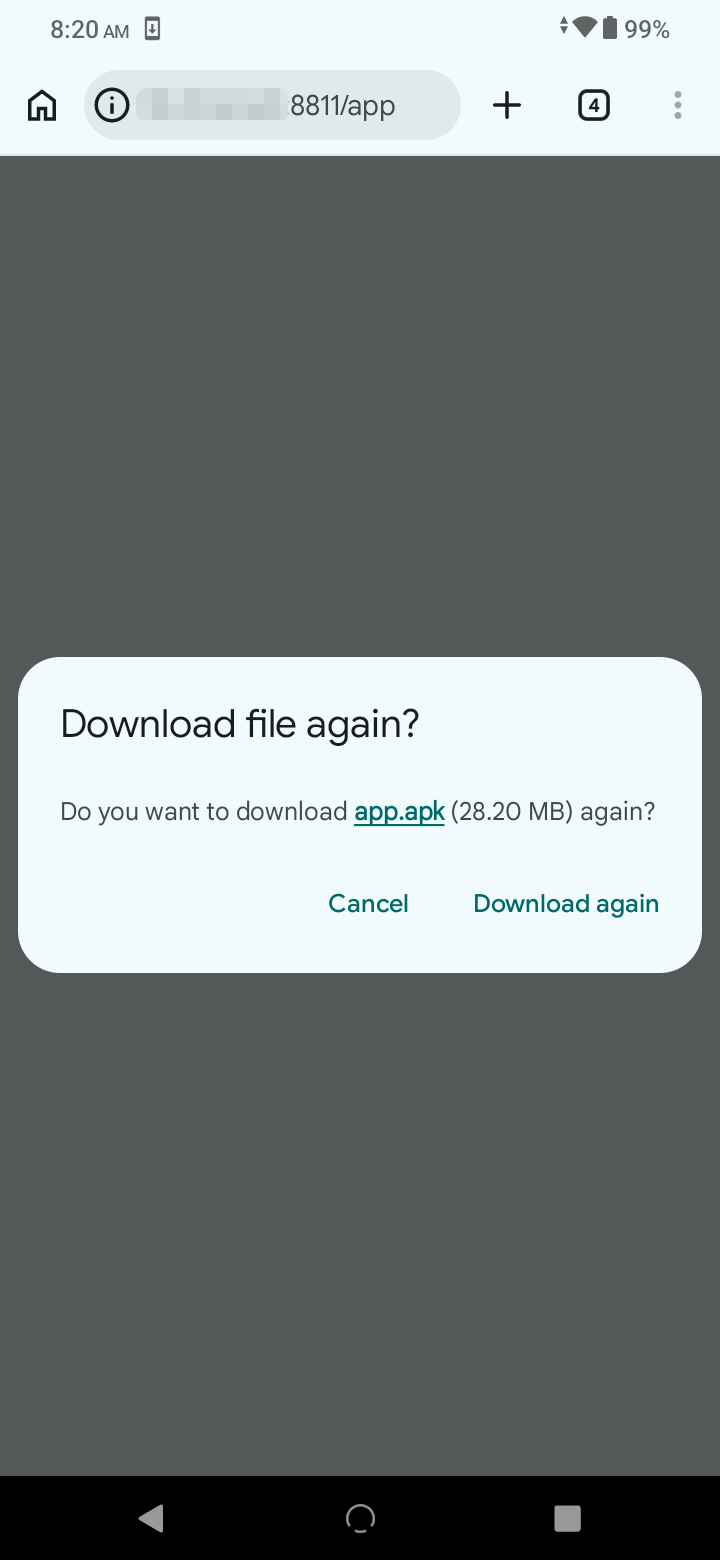
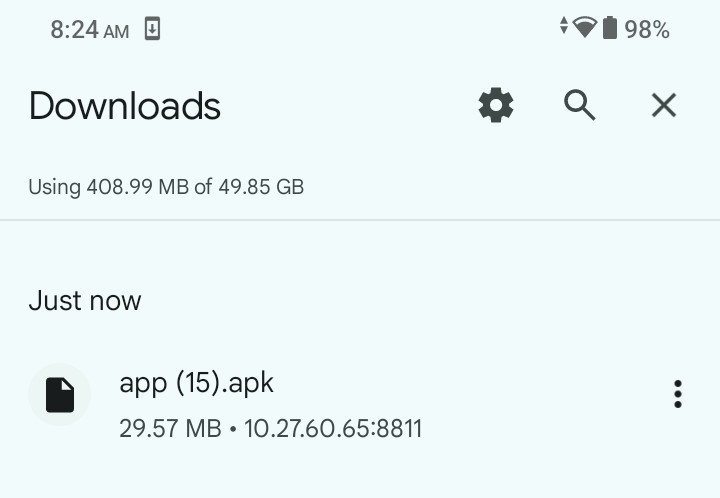
Once downloaded, tap the file, or select the ‘Open’ option. You will see a series of dialogs where you will need to accept the unsafe install warnings.
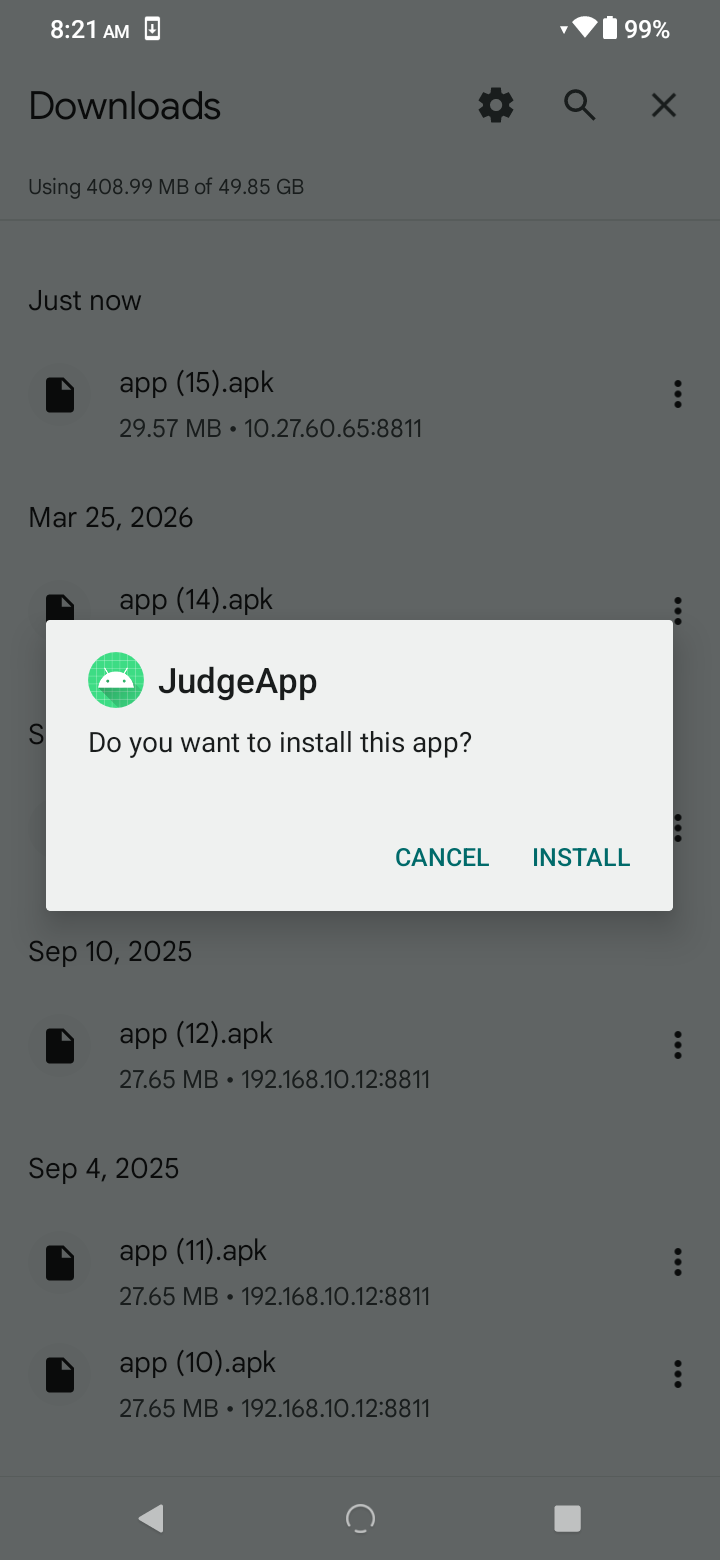
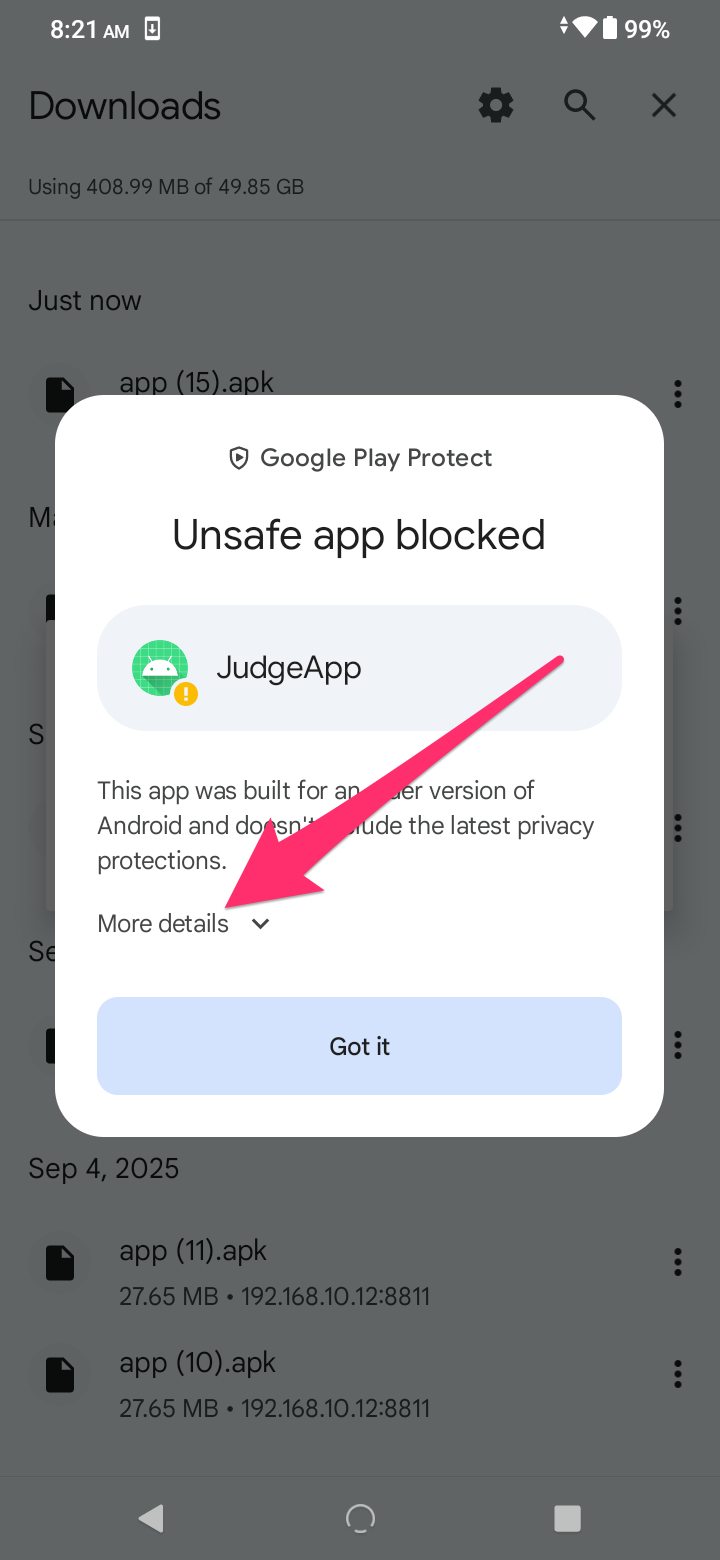
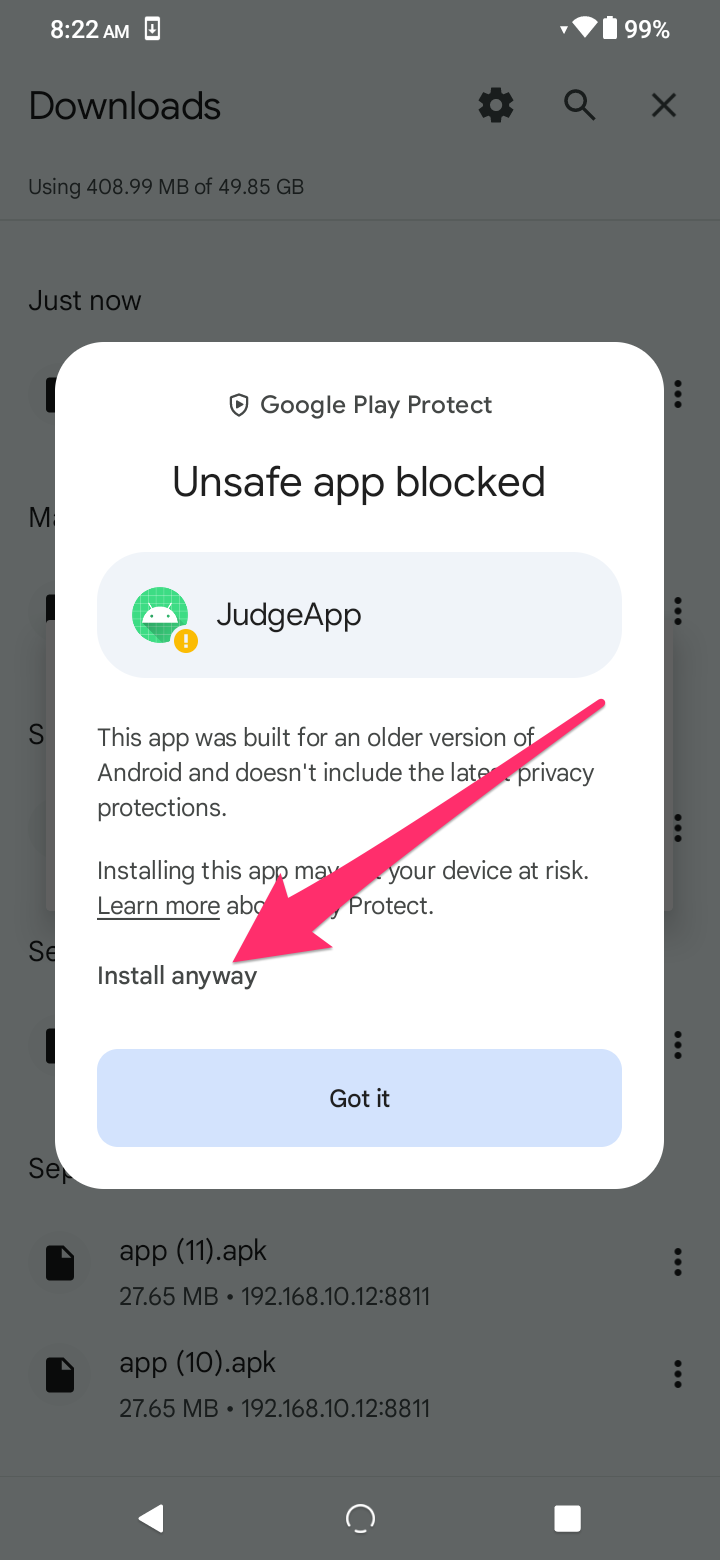
(Depending on your version of Android and whether you’ve previously installed the app on the phone, you may see slightly different screens)
Configure JudgeApp to Communicate with Scoring Computer
Finally, tell the JudgeApp how to communicate with the scoring computer. When you first open the app, you will see a screen indicating that no contest is configured. Tap this screen 5 times.

You will enter into the Admin screens. On the top left, tap the menu icon, then select Configuration.
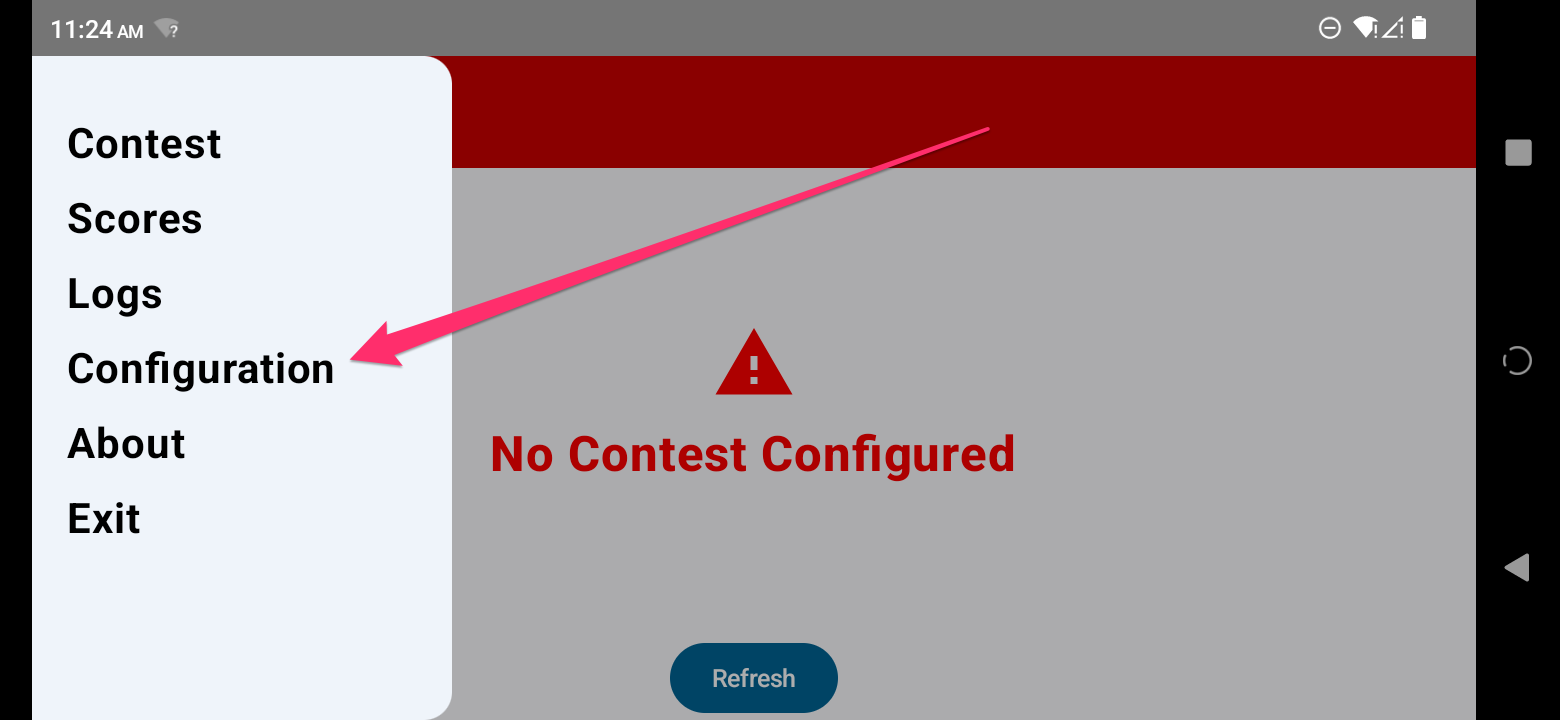
On this page you can have the app look for the scoring computer automatically. Make sure the scribe adapter is running, and tap ‘Find Scoring Compter’. If found, it will populate the field for you and automatically save it.
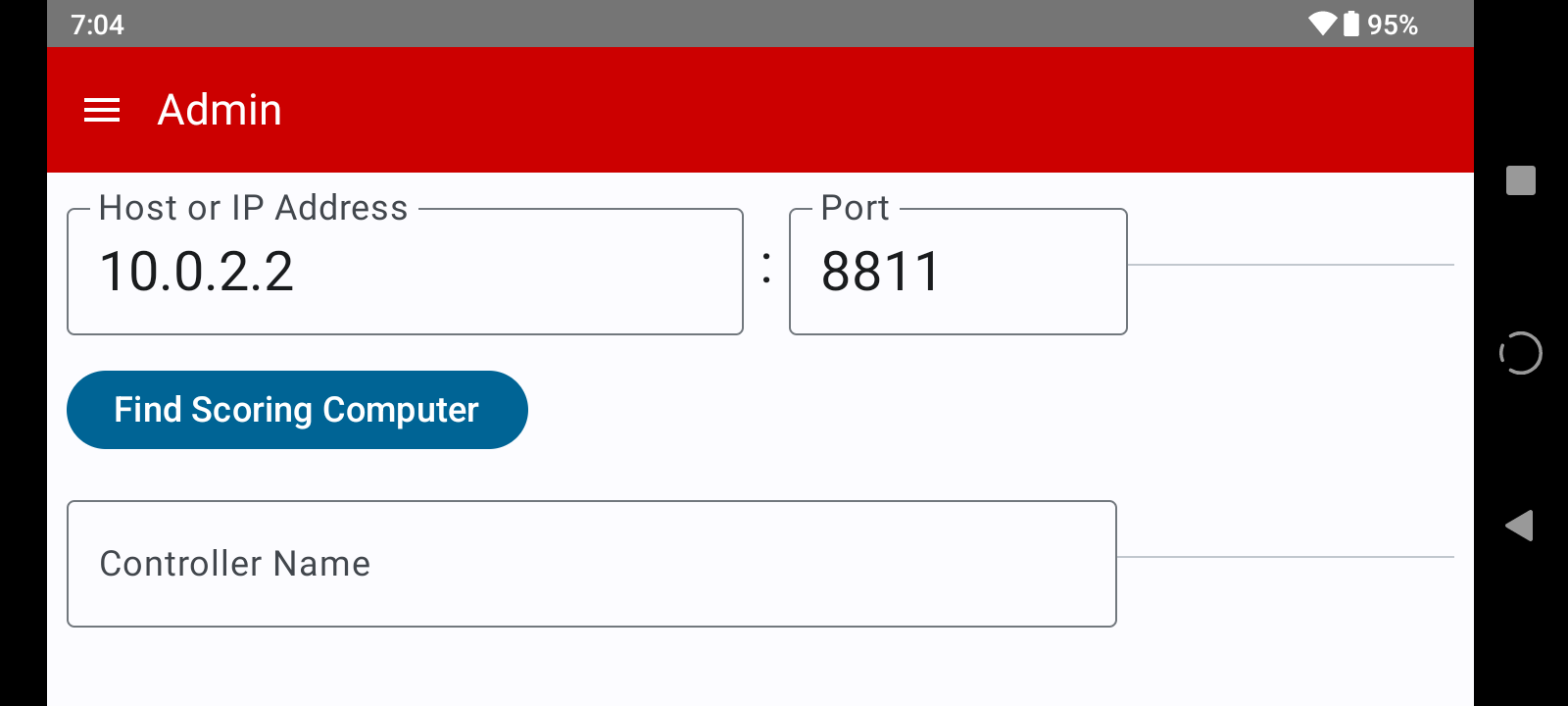
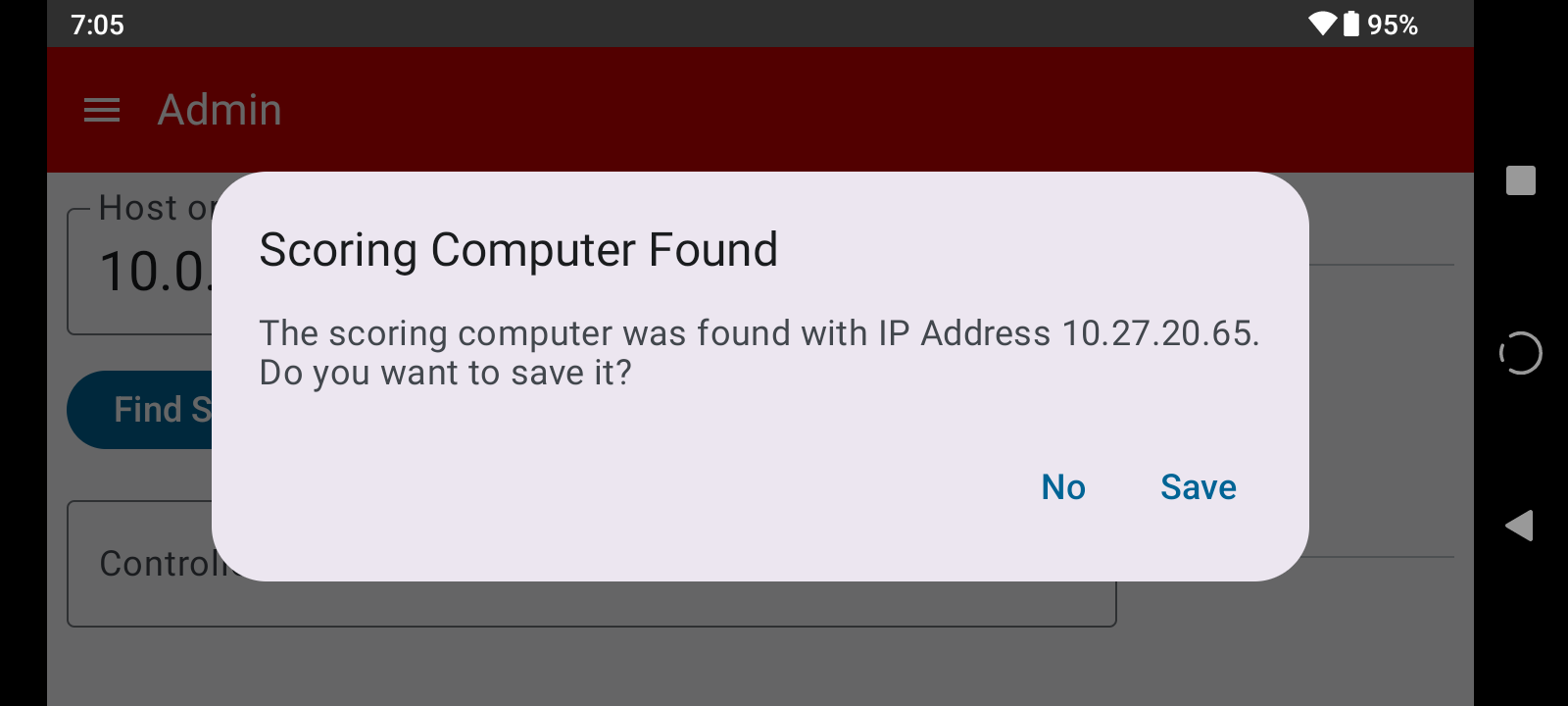
If the computer is not found automatically, you can enter the IP address manually. Change the IP address to the one used above that you got from the dashboard. Be sure to tap the Save button.
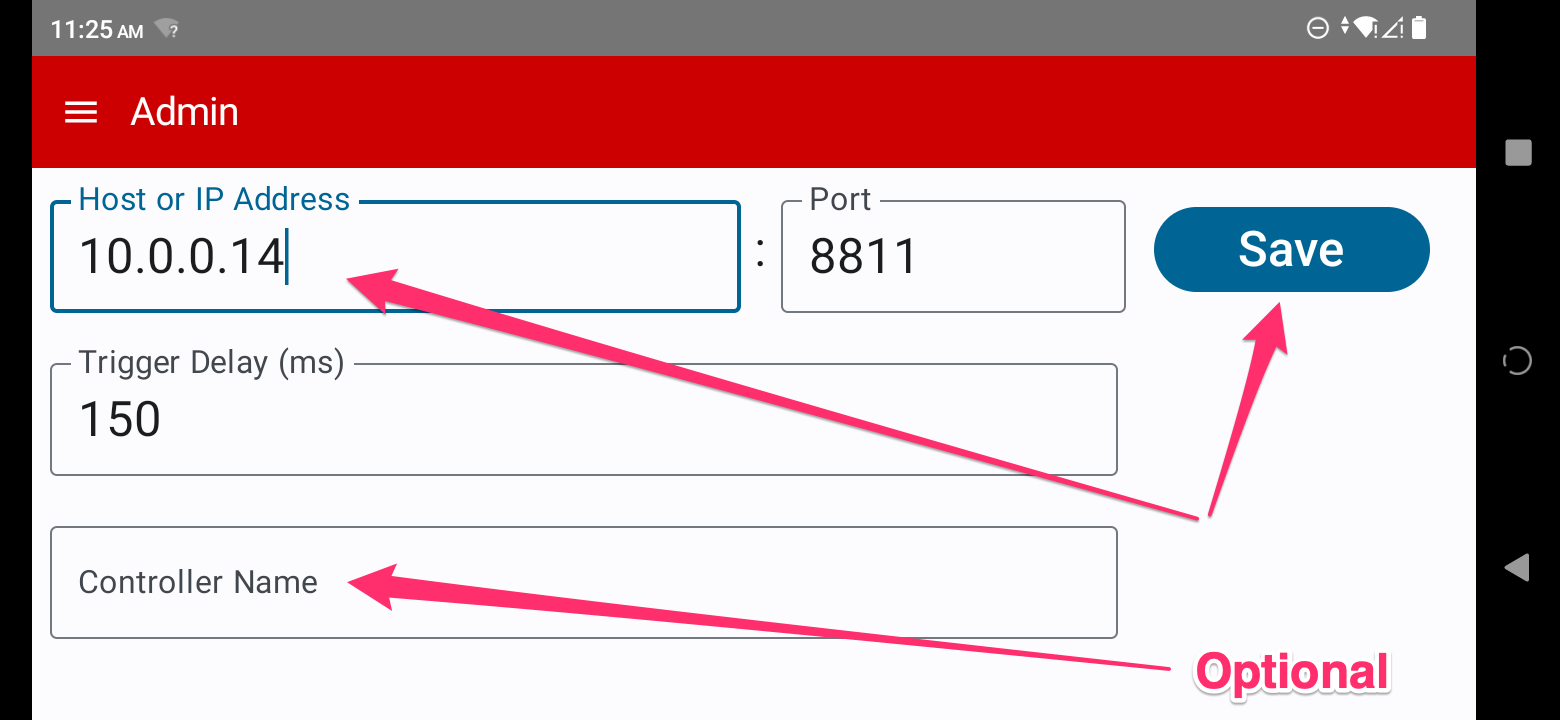
You can optionally give each controller a name (these show in the dashboard when posting scores).
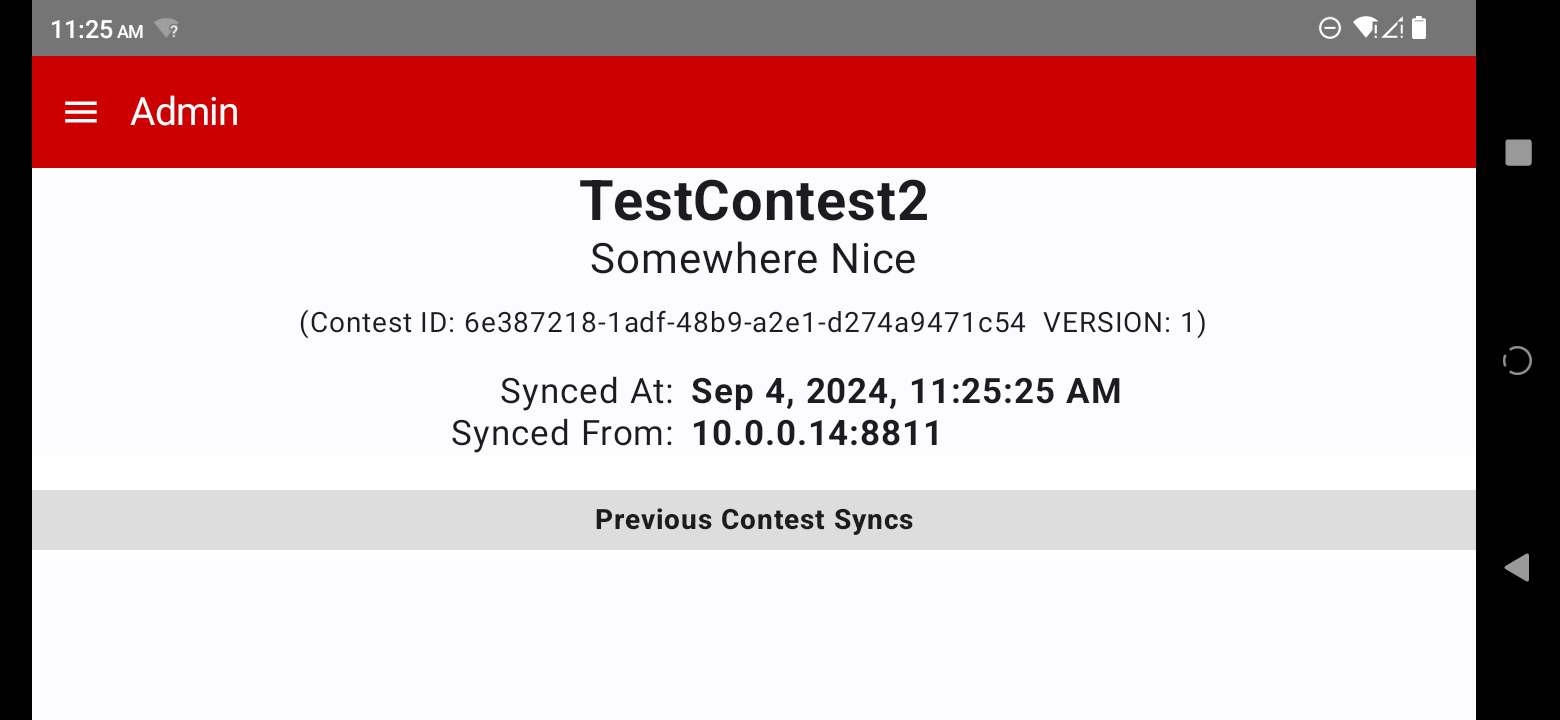
Tap the menu icon, then tap Contest. This screen will now show the contest name and information.
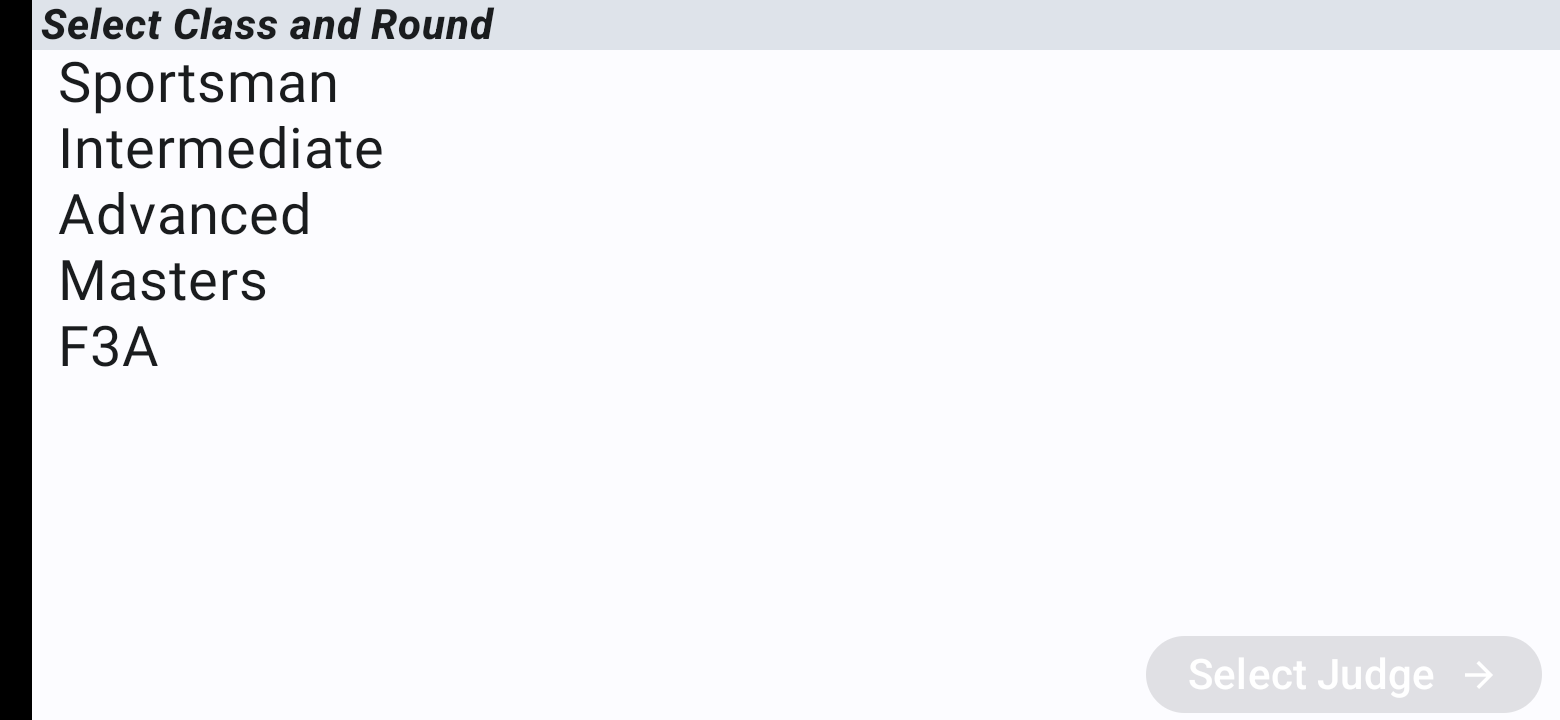
Tap the menu icon and tap Exit.
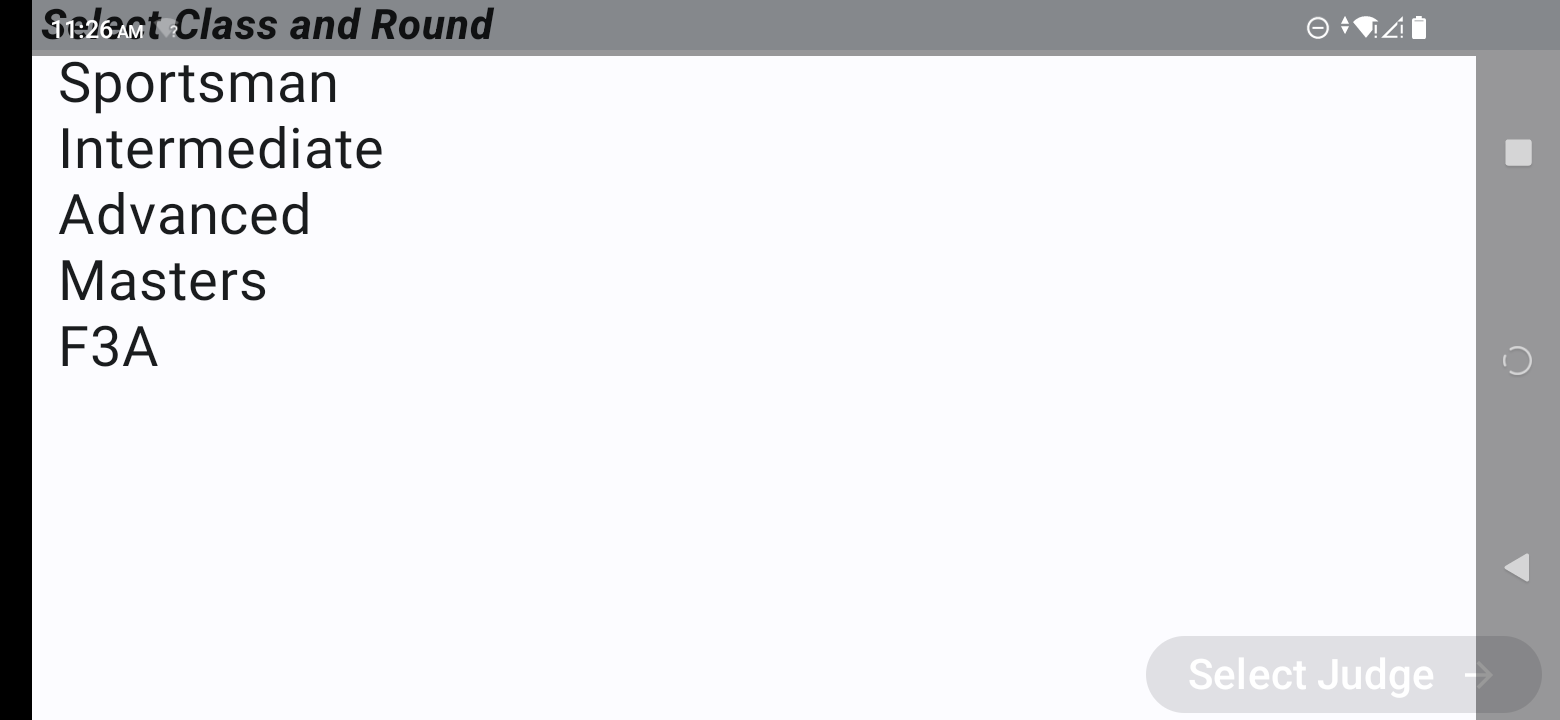
You will now see the Select Class and Round screen, and can begin using the controller to score flights.
Getting Out of the JudgeApp
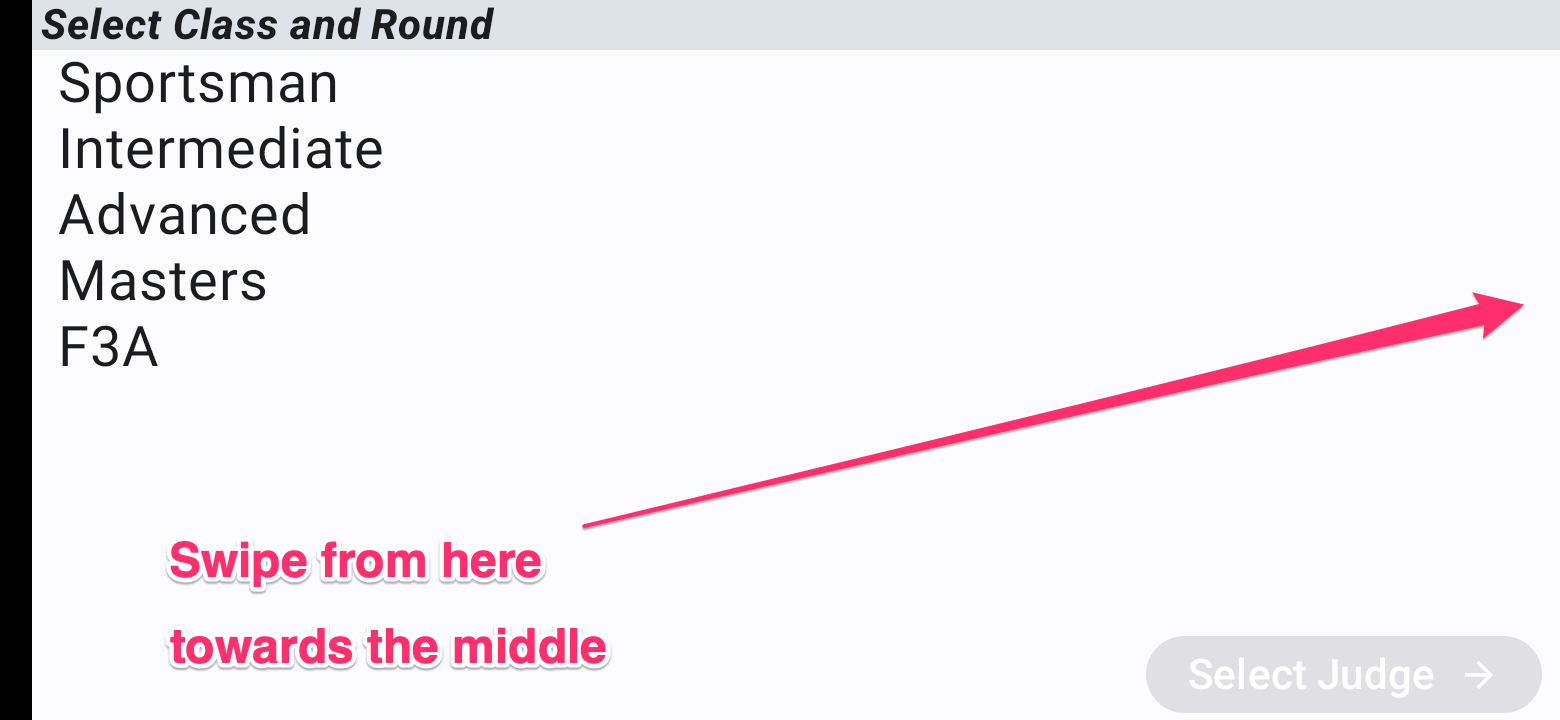
The app hides the Android Home buttons on all screens except the Admin screens. They can be shown by swiping from the right edge toward the middle (or going into the Admin screens).
Tips for Running the Electronic Scribe
Below are a series of tips for operating the electronic scribes, in no particular order.
The Controllers Can Handle Spotty WiFi Networks
These controllers are built to be very resilient to a poor WiFi network at the field. The principle they are built around is “never have to stop the flight line for a controller problem”.
What this means in practice is they will continue to work, capture scores, and safely save scores on the device, even when they can’t communicate with the scoring computer. Once they regain signal to the scoring computer, they will simply sync up the saved scores automatically at that time.
Theoretically they can be offline or not able to talk to the scoring computer (e.g. if the scribe adapter isn’t running) for hours while flying/judging continues, and all scores will be safely recorded and synced. This means you do not need to monitor the scoring computer every flight and have the flight line wait for the last scores to be recorded.
Of course you should monitor that the scores are coming in throughout the day, but flight-by-flight and holding a flight line should not be necessary.
Things can happen such as an actual issue with the physical controller that may make you hold up a flight line, but connectivity to the scoring computer should not be a blocker.
Monitoring Scores – Part 1 – On the Scoring Computer
MAKE SURE TO NOTE THE WARNING BELOW
A primary concern for scorekeepers during a contest are that the scores are coming in correctly from the controllers. Are all judges’ scores coming in? For all pilots who’ve flown? For the right round?
To make this easy there is a ‘Summary’ tab on the dashboard. It shows at a glance the count of the “score sets” from each judge, for each contestant, in each round. If the cell is green — all scores for that contestant came in for all judges. If it is yellow, a score set is missing from at least one judge.
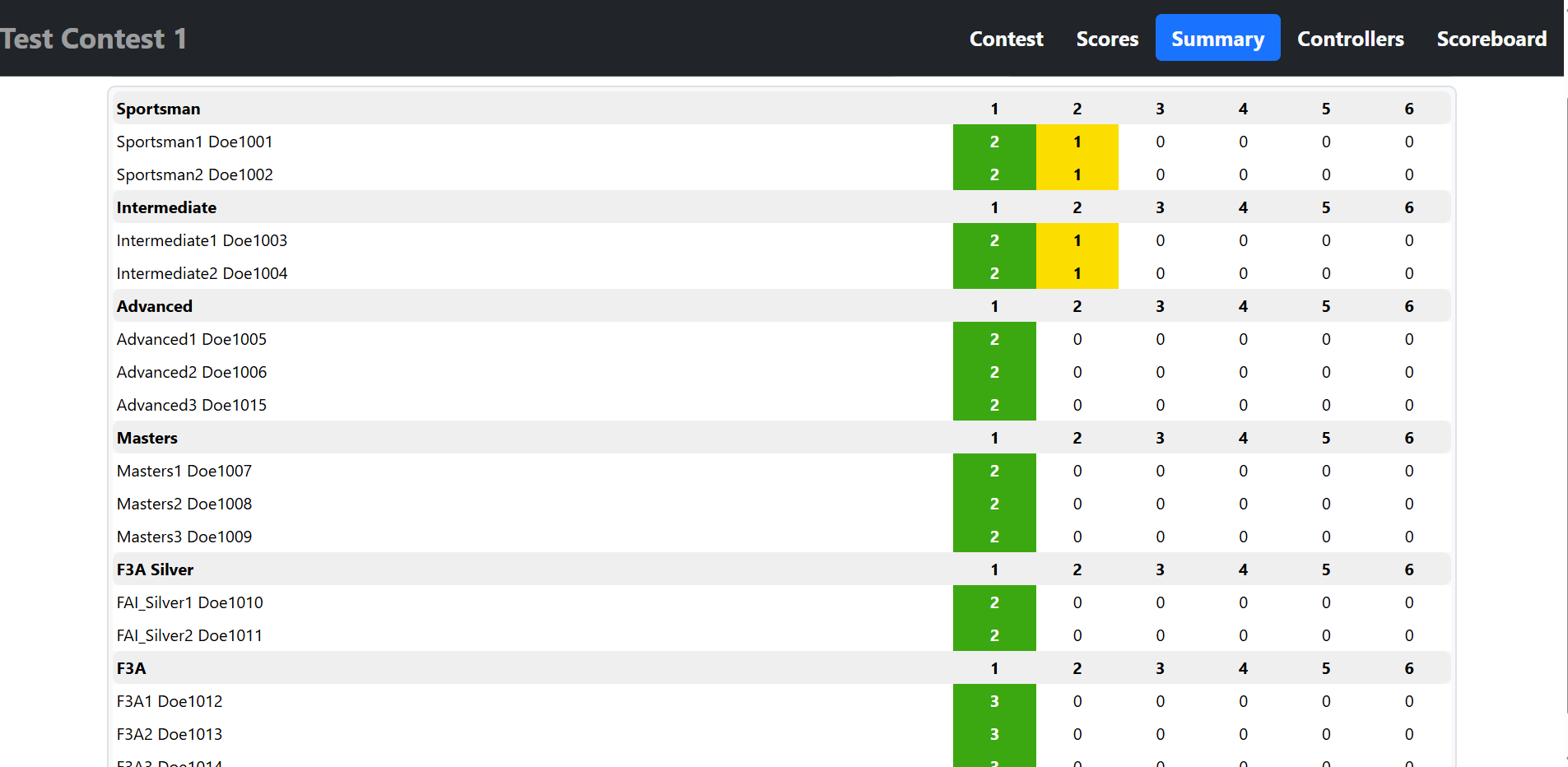
In the screenshot above we can see that all scores came in correctly during round 1. Round two is suspect, however, because it’s into the second round, and we are only getting scores from 1 judge. Click on the cell and it will show you which judge’s scores came in.
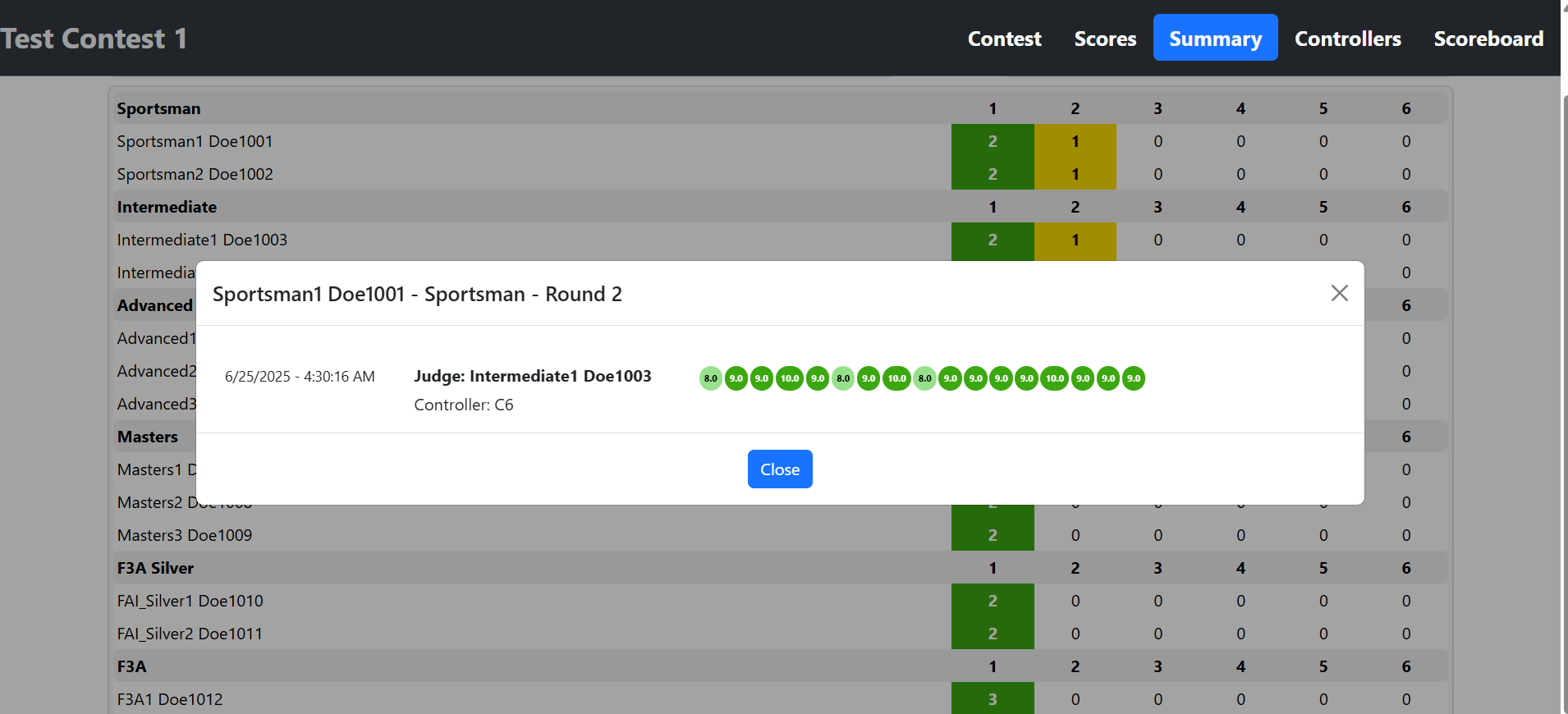
Judge Intermediate1’s scores came in, so we can see which judge/controller to go check on. (Notice that the controller name is listed as well)
Finally, if a judge resubmits changed scores for a contestant, you can see that on this screen as well. The number in the cell will still be “2” because there are 2 judges, but you can see the resubmission by clicking on the cell.
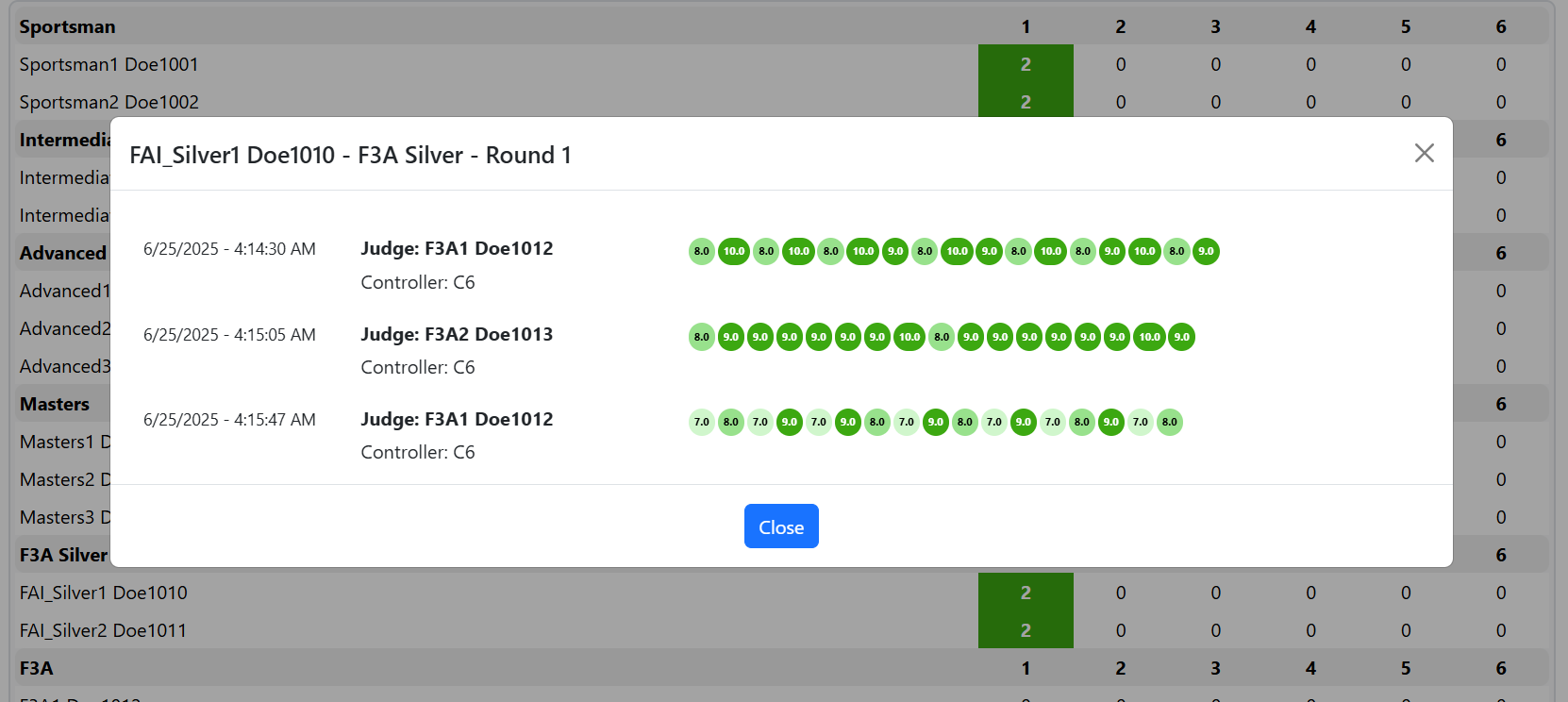
Note that judge F3A1 submitted the original scores, then changed scores and resubmitted.
*** IMPORTANT WARNING ***
This screen is only showing that the scores made it from the controllers to the scribe adapter. It DOES NOT guarantee they made it into MasterScoring, which can occasionally have errors. Verify the scores in MasterScoring periodically to make sure they’re getting in there as expected.
Monitoring Scores – Part 2 – On the Controllers
The previous tip showed how the scribe adapter’s Summary screen looks when one of the controllers appeared to not be syncing scores. When you go to look at the controller you can see what’s happening on that particular controller.
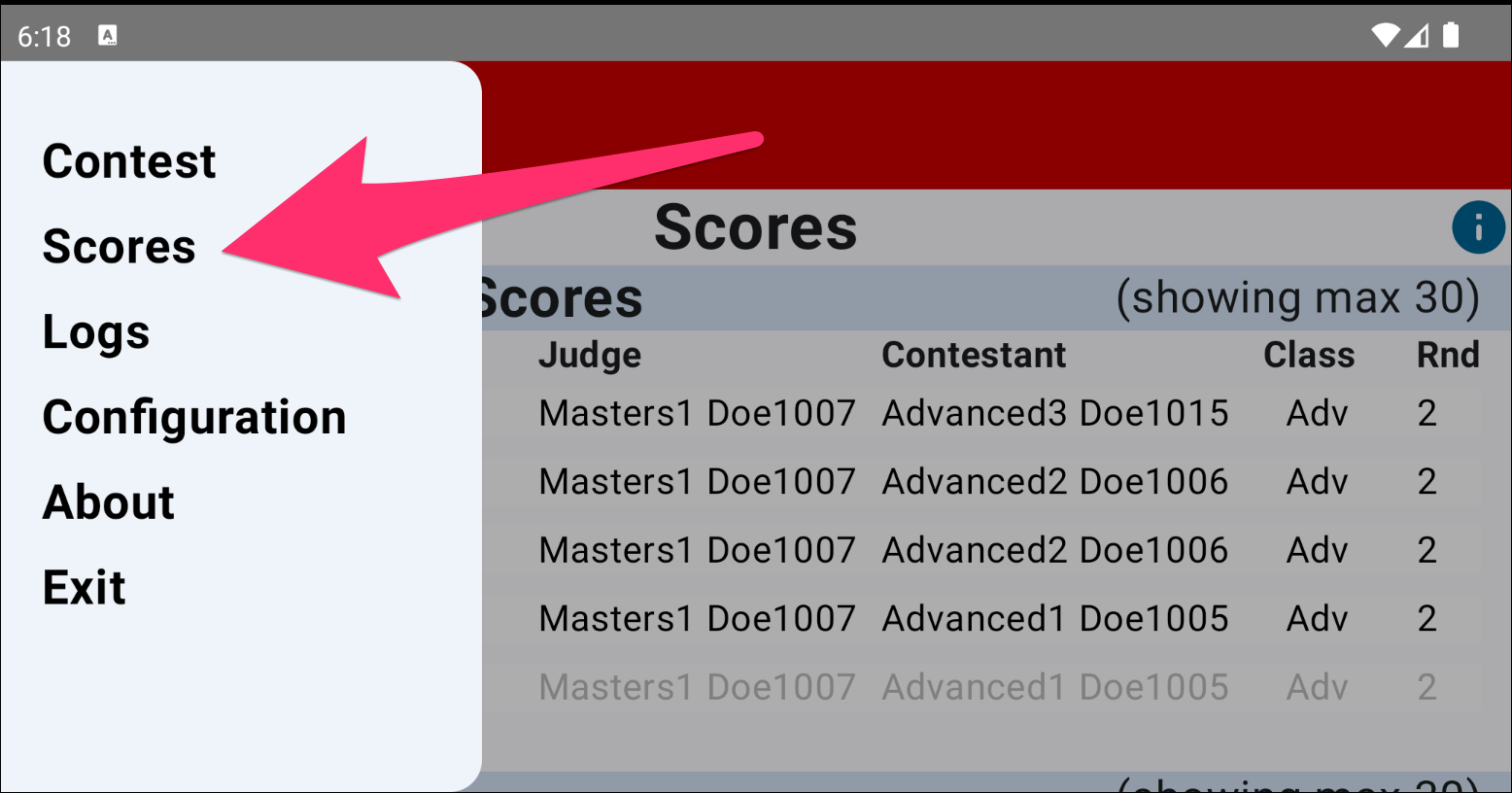
Go into the Admin screens (typically by tapping 5 times on the bottom white part of the screen), and select the Scores menu item.
On the screen below, first notice that there is a running log of all of the scores entered on this controller, in the order they were entered. For our current scenario look at the first column, named Status.
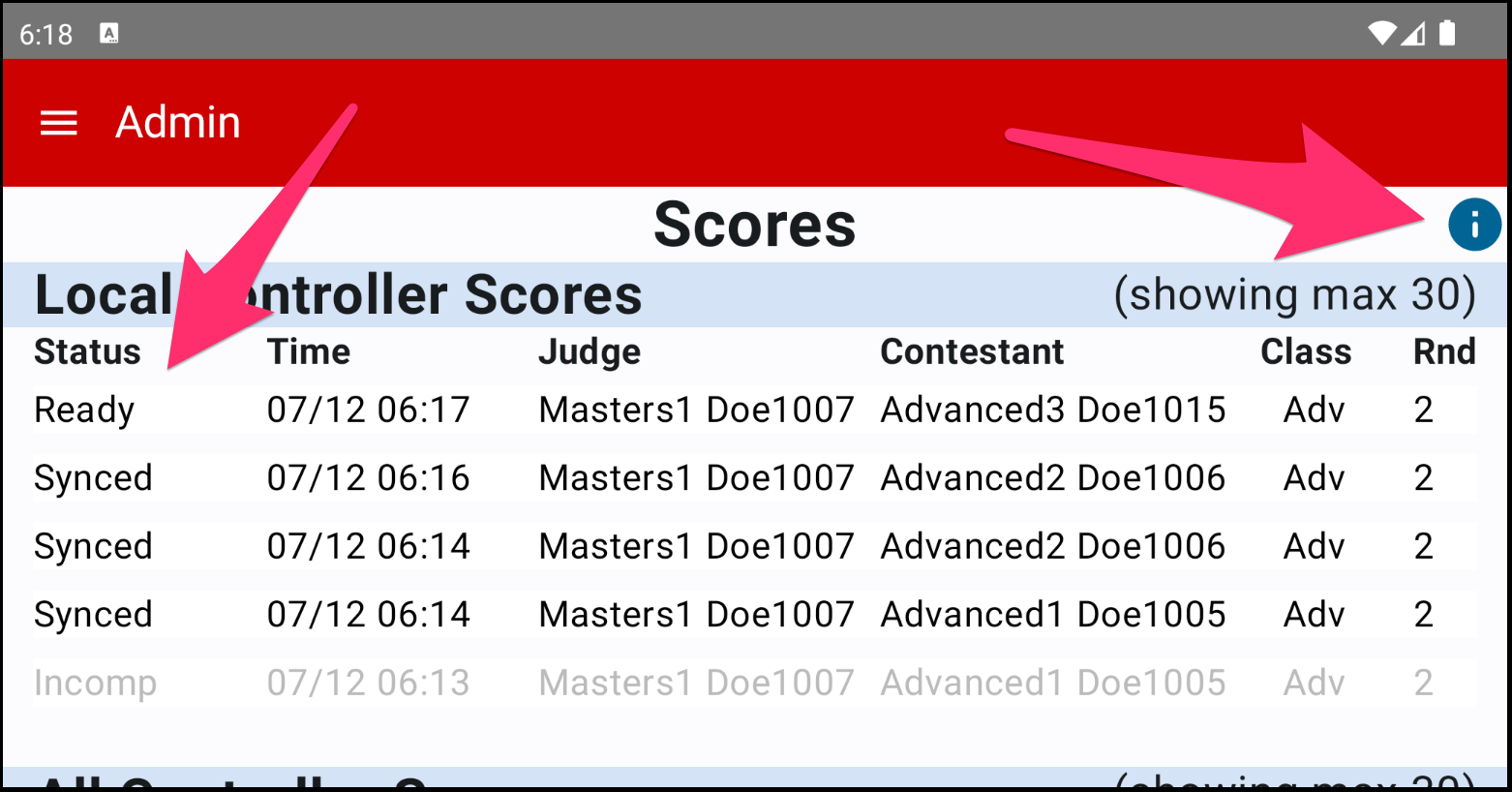
Notice that most of the scores say Synced, but the latest one says Ready. The Ready status means that the scores were saved by the judge on the controller, and they can now be synced to the scoring computer, but have not yet done so. This may be because the scribe adapter isn’t running, or the WiFi of the controller is turned off, or some other reason. Once you rectify the issue, any score sets with status Ready will be automatically synced to the scoring computer.
You can also see one set of scores is grayed out, and the status is Incomp. This means the judge started scoring this round but never saved the scores, so they will not be reported back to MasterScoring.
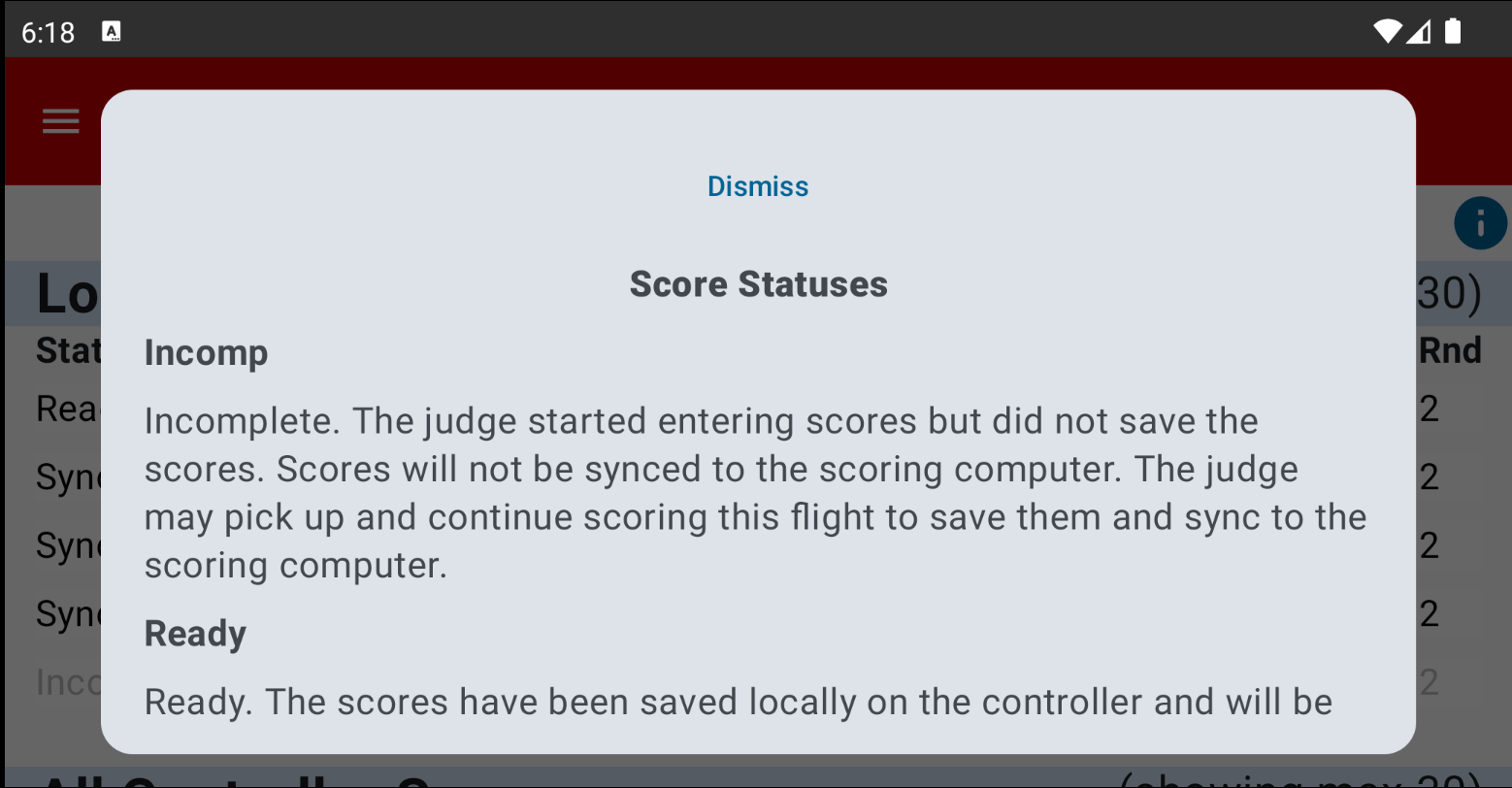
Tapping the Information (i) button on the top right will tell you what the statuses mean (note that this screen scrolls).
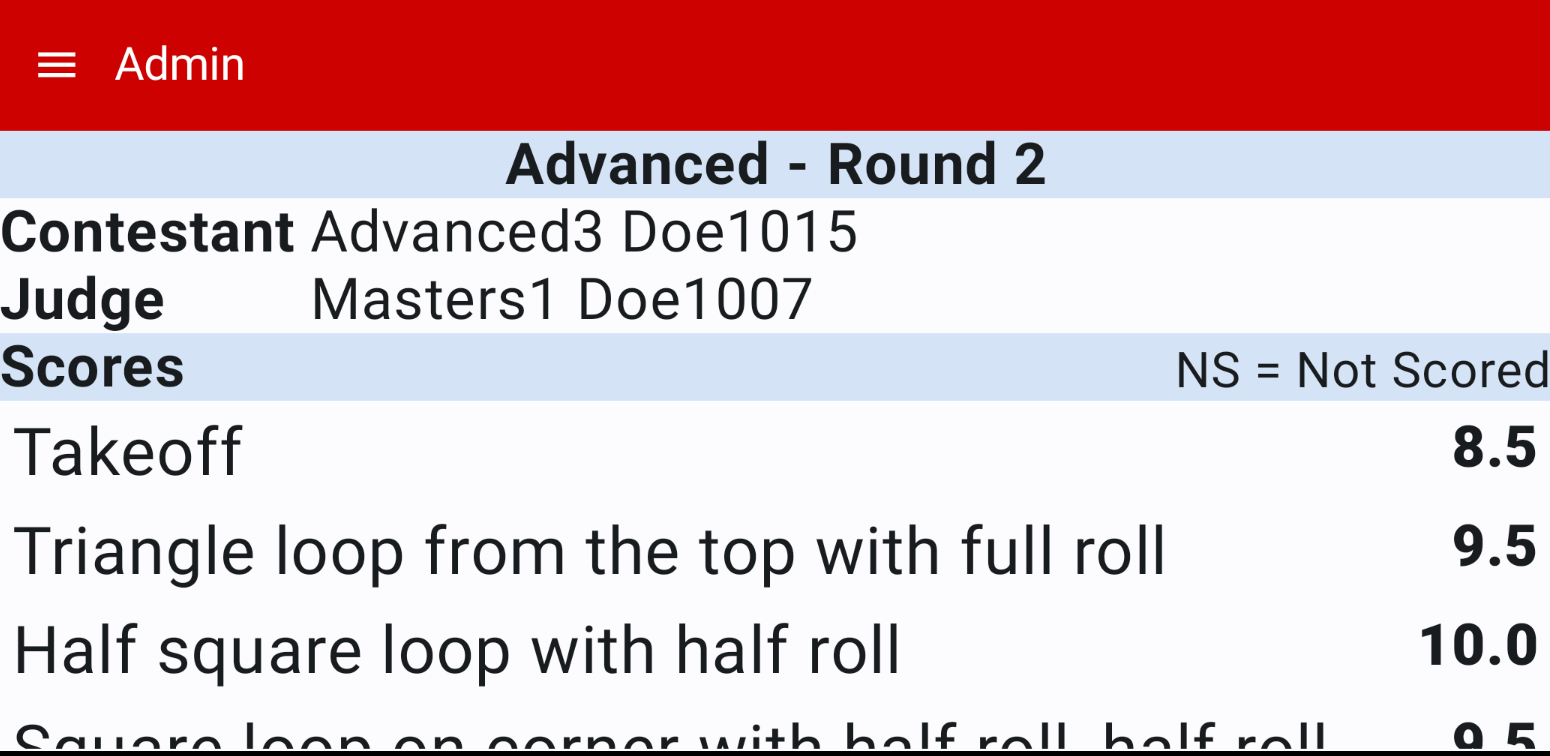
One final note is that you can tap on a score set to see the actual scores entered.
Monitoring the Controllers
The scribe dashboard has a page showing live information abou the controllers, and a QR Code making it easy to install the app on the controllers without having to type in URLs by hand. The QR Code is at the bottom of the Controllers tab on the dashboard.
When running a contest, the controllers report their health back to the scoring computer so you can monitor all controllers fromt the computer rather than going out to check each controller. They report their battery and WiFi status, along with the most recent judge and contestant.
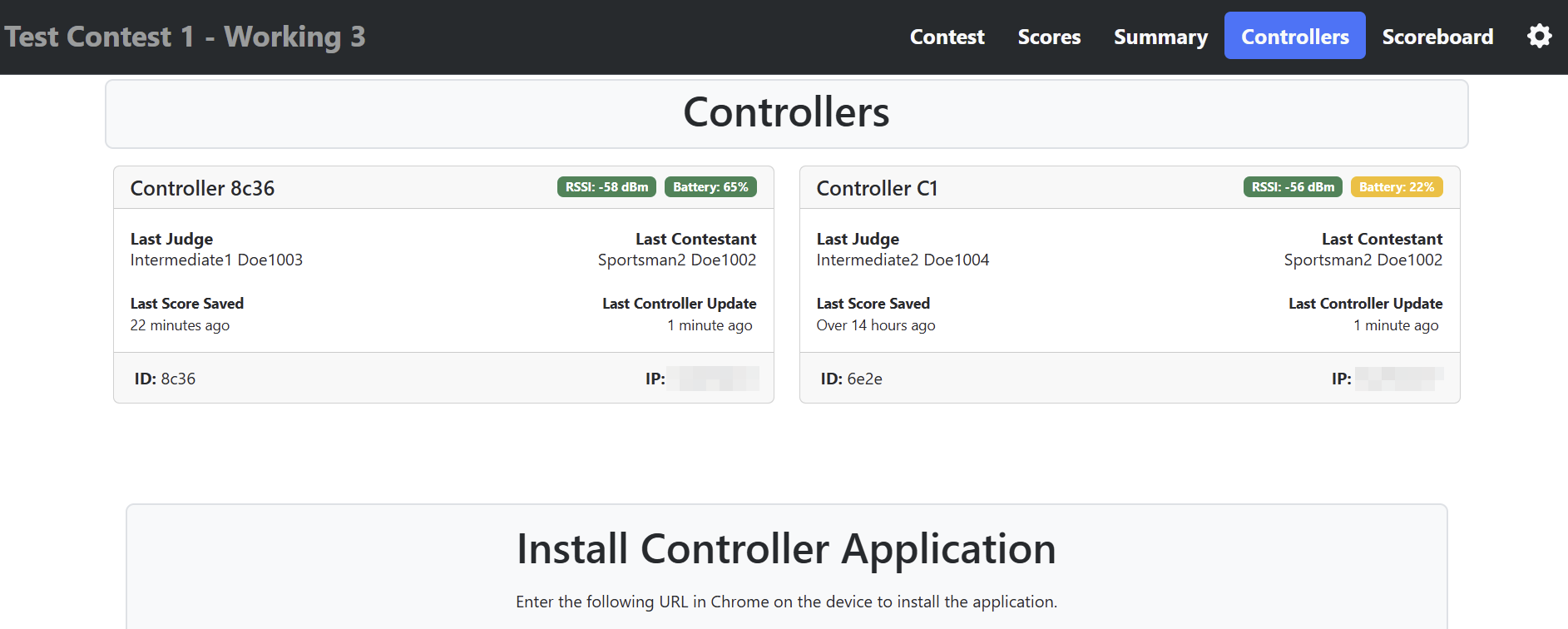
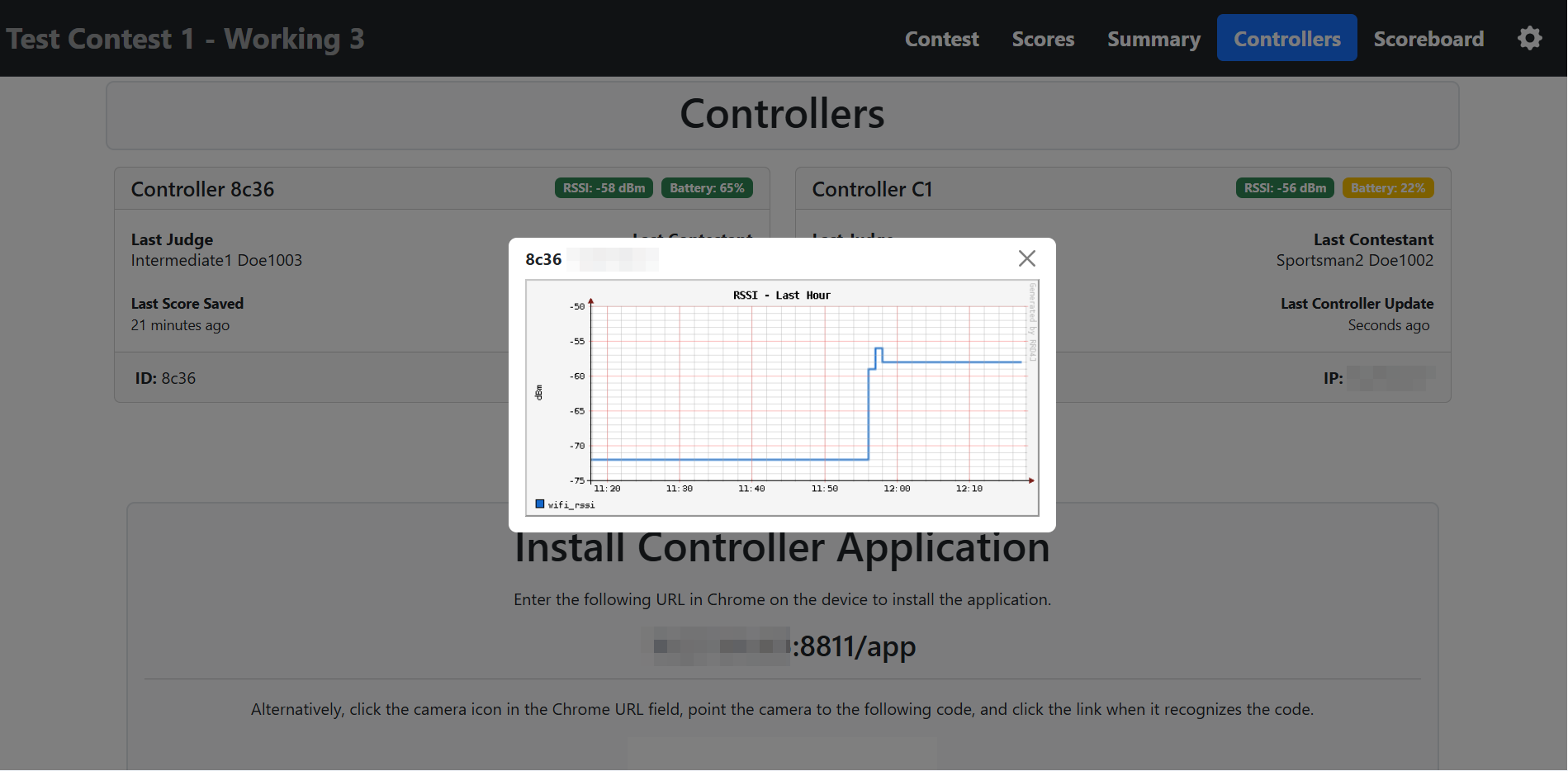
The battery and RSSI indicators turn yellow or red if they are having problems, and the whole card for a controller will turn yellow or read if the controller stops reporting its health. Clicking on the RSSI value brings up a graph showing the value over the recent period of time.
Scoreboard Doesn’t update
The local scoreboard, accessed with the ‘Scoreboard’ tab at the top of the Scribe Adapter’s dashboard, display standings information exported from MasterScoring. From time to time, MasterScoring may appear to not export the results, and the scoreboard then does not update.
First, check that the export settings in MasterScoring are correct:
- On the Reports tab, make sure the folder is set to
C:\Pattern\ScoreAdapter\MasterScoreExport. - Make sure the format is ‘PatternScoring.com (JSON)’
- Make sure ‘Auto generate on score import’ is selected.
You can hit the Export button to try to force an update.
Then, in Windows Explorer look in
C:\Pattern\ScoreAdapter\MasterScoreExport. You should see a
contestResults.json file (along with others). See what the Date modified
is. If it’s not at about the time you just entered some scores, then
it’s not exporting when new scores come in. I’ve seen restarting
MasterScoring trigger it to update.